Getting Started
What is CalDAV?
CalDAV is an open protocol that allows you to access calendar data on a remote server. It's based on WebDAV and enables calendar clients to access, create, modify, and share calendar information across multiple devices and platforms.
Key Benefits: Cross-platform compatibility, real-time synchronization, centralized calendar management, and secure access from anywhere.
Features
Real-time Sync
Automatic synchronization across all your devices
Calendar Sharing
Share calendars with colleagues and teams
Event Reminders
Never miss important events with notifications
Secure Access
SSL/TLS encryption and authentication
Client Configuration
Connection Details
To connect your calendar client, use the following information:
Quick Access: After logging in, go to Settings to view and copy your personal CalDAV connection details including your username, server address, and server path.
- Username
- Your CalDAV username (available in Settings page)
- Server Address (CalDAV)
-
https://caldav.lt - Server Path (CalDAV)
- /caldav/[your-username]/ (available in Settings page)
- Password
- Your app-specific password (generated in Profile → App Passwords) or account password
Tip: Some clients auto-discover the correct path. If you have issues, use the full URL format: https://caldav.lt/caldav/[your-username]/
Mozilla Thunderbird
Thunderbird with Lightning extension is a popular choice for CalDAV.
- Open Thunderbird and go to Calendar view
- Right-click in the calendar list and select "New Calendar"
- Choose "On the Network"
- Select "CalDAV" as the format
- doc_enter_server_url_full
- Enter your username and app-specific password when prompted
- Click "Next" and give your calendar a name
Apple Calendar (macOS/iOS)
Apple Calendar has native CalDAV support built-in, making setup quick and seamless across all your Apple devices.
macOS Calendar Setup:
Add CalDAV Account
Open Calendar app on your Mac. Click Calendar in the menu bar, then select Add Account. Choose Other CalDAV Account from the list of account types.
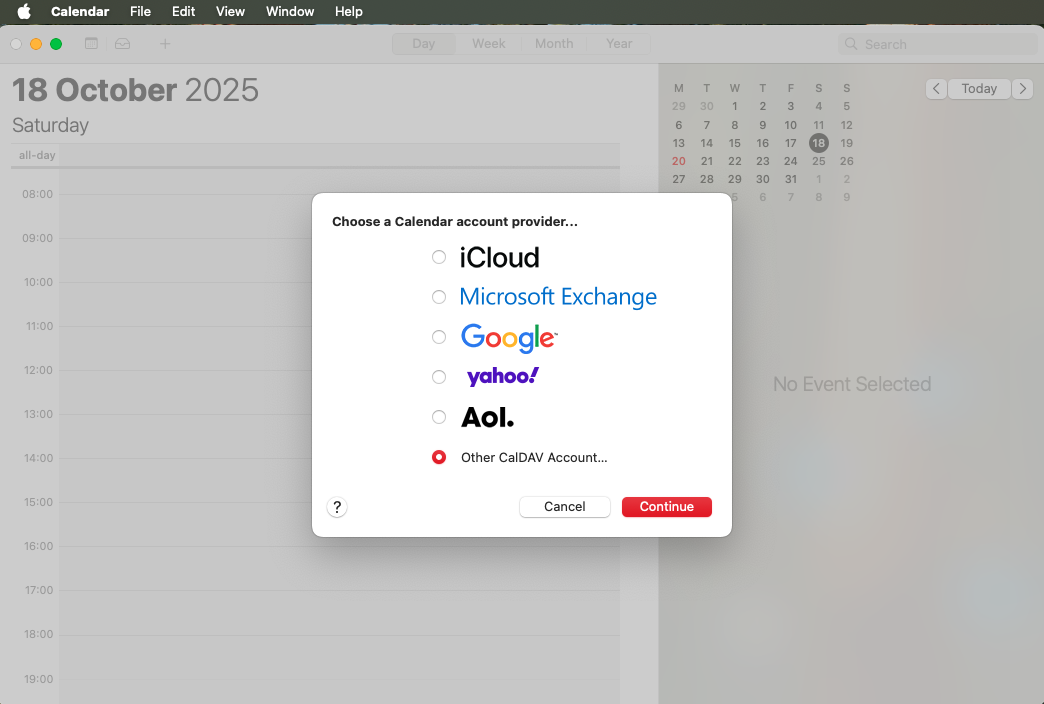
Enter Server Details
Fill in your CalDAV account information:
- Account Type: Manual
- Email: your_email@example.com
- Password: Your app-specific password (from Profile → App Passwords) or account password
- Server Address:
caldav.lt
doc_mac_step2_continue
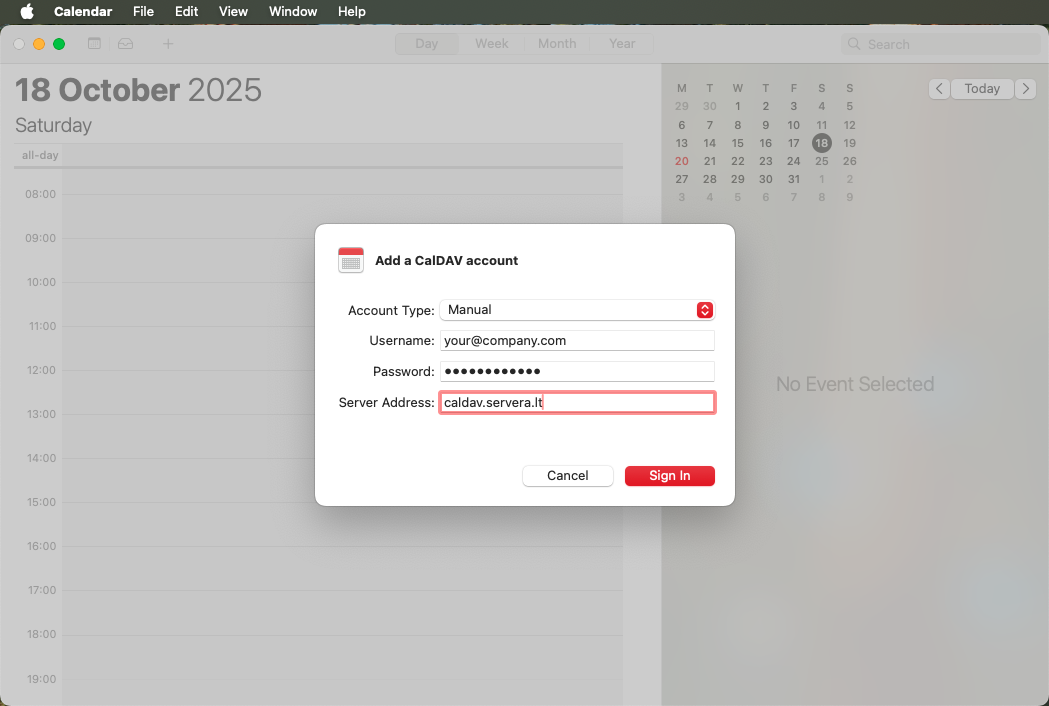
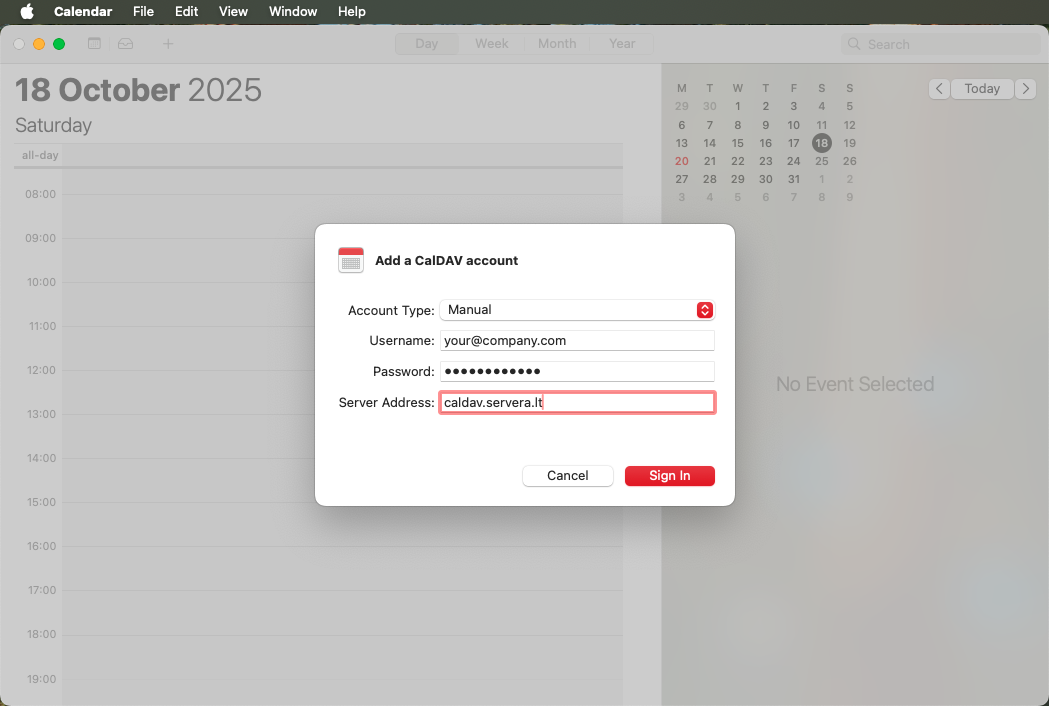
Verification & Sync
Mac Calendar will automatically verify your account credentials and connect to the CalDAV server. Your calendar will appear in the sidebar and begin syncing all events immediately. No additional configuration needed!
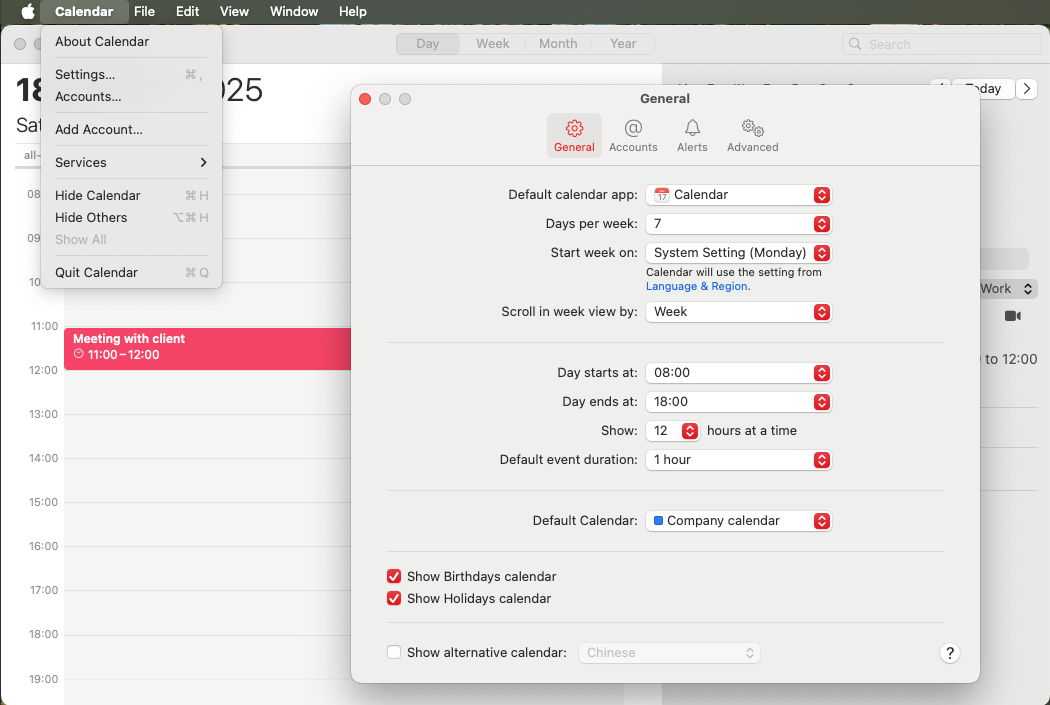
doc_set_as_default doc_step_optional
doc_mac_set_default_description
Setup Complete!
Your Mac Calendar is now synced with CalDAV Calendar. All your events will automatically sync across all your Apple devices (iPhone, iPad, Mac) signed in with the same CalDAV account.
iPhone / iPad Calendar Setup:
Follow these steps to set up CalDAV Calendar on your iPhone or iPad. This guide works for all iOS and iPadOS versions.
Open Settings
On your iPhone or iPad, open the Settings app. Scroll down and tap Calendar to access calendar settings.

Access Accounts
In the Calendar settings, tap Calendar Accounts to manage your calendar accounts.

Add Account
Tap Add Account, then select Other from the list of account types.

Select CalDAV Account
Tap Add CalDAV Account to begin configuring your calendar connection.

Enter Account Details
Fill in your CalDAV account information:
- Server:
caldav.lt - User Name: your_email@example.com
- Password: Your app-specific password (from Profile → App Passwords) or account password
- Description: doc_optional_name
doc_tap_next doc_to_verify_and_connect

Complete Setup
iOS will verify your credentials and establish the connection. Once verified, tap "Save" to complete the setup. Your CalDAV calendar will now appear in the Calendar app!

doc_set_as_default doc_step_optional
To make your CalDAV calendar the default for new events, go to Settings → Calendar → Default Calendar, and select your CalDAV calendar from the list.

Setup Complete!
Android
https://caldav.lt/caldav/
Microsoft Outlook
Outlook requires the CalDAV Synchronizer plugin to connect to CalDAV servers. This free plugin enables full CalDAV support in Outlook.
Step 1: Install CalDAV Synchronizer
- doc_outlook_download_synchronizer
- Run the installer and follow the installation wizard
- Restart Outlook after installation completes
- You'll see a new "CalDAV Synchronizer" tab in the Outlook ribbon
Step 2: Configure CalDAV Account
- Open Outlook and click the "CalDAV Synchronizer" tab
- Click "Synchronization Profiles"
- Click "Add new profile" button
- Select "Generic CalDAV/CardDAV" as the profile type
- Enter your account details:
- Profile name: doc_optional_name
- Outlook folder: doc_outlook_folder_desc
- DAV URL:
https://caldav.lt/caldav/[your-username]/ - Username: doc_outlook_username_desc
- Password: doc_outlook_password_desc
- Click "Test or discover settings" to verify connection
- If successful, click "OK" to save the profile
Step 3: Configure Sync Settings
- In the Synchronization Profiles window, select your new profile
- Click "Edit" to adjust settings (optional)
- Choose synchronization mode:
- Two-way: doc_outlook_sync_twoway_desc
- Outlook to Server: doc_outlook_sync_outlook_to_server_desc
- Server to Outlook: doc_outlook_sync_server_to_outlook_desc
- Set synchronization interval (e.g., every 30 minutes)
- Click "OK" to save settings
Step 4: Manual Sync & Verification
- Click the "Synchronize now" button to perform initial sync
- Wait for synchronization to complete (check the status bar)
- Open your calendar folder in Outlook to verify events are syncing
- Create a test event in Outlook and verify it appears on the server
Setup Complete!
Your Outlook calendar is now synced with CalDAV Calendar. The synchronizer will run automatically at your configured interval, keeping everything up to date.
Tip: You can add multiple CalDAV accounts by creating separate profiles in CalDAV Synchronizer. Each profile can sync to a different Outlook calendar folder.
doc_troubleshooting_header
Connection Failed?
- Double-check your username (should be your email address)
- Verify password is correct
- Ensure URL format: https://caldav.lt/caldav/[username]/
- Check your firewall isn't blocking Outlook
Events Not Syncing?
- Click "Synchronize now" to force a manual sync
- Check the CalDAV Synchronizer log for errors
- Verify sync mode is set to "Two-way"
- Ensure you're creating events in the correct calendar folder
doc_administrator_guide
Organization Members
Organization administrators can invite new members, manage groups, and configure resources.
doc_admin_note_invitation
What You Can Manage
doc_members_label
Invite new users to join your organization via email invitation
doc_resources_label
Create and manage meeting rooms, equipment that can be booked
Groups
Groups simplify permission management by allowing you to grant access to multiple users at once.
Best Practice: Create groups for teams or departments (e.g., "Sales Team", "Engineering") to easily manage calendar sharing.
Creating a Group
- Go to Groups → Create Group
- Enter group name and description
- Add members to the group
- Grant permissions to the group
doc_calendar_permissions
doc_permissions_intro
doc_permissions_important
doc_permission_read
doc_permissions_read_description
doc_permission_write
doc_permissions_write_description
doc_common_scenarios
doc_permissions_scenario1_title
doc_permissions_scenario1_desc
doc_permissions_scenario2_title
doc_permissions_scenario2_full
doc_permissions_scenario3_title
doc_permissions_scenario3_desc
doc_organization_roles
doc_orgroles_intro
doc_orgroles_important
doc_role_owner
doc_orgroles_owner_description
- doc_role_owner_permission_1
- doc_role_owner_permission_2
- doc_role_owner_permission_3
- doc_role_owner_permission_4
doc_role_admin
doc_orgroles_admin_description
- doc_role_admin_permission_1
- doc_role_admin_permission_2
- doc_role_admin_permission_3
- doc_role_admin_permission_4
- doc_role_admin_permission_5
doc_role_member
doc_orgroles_member_description
- doc_role_member_permission_1
- doc_role_member_permission_2
- doc_role_member_permission_3
- doc_role_member_permission_4
- doc_role_member_permission_5
doc_best_practices
- doc_best_practices_org_owners
- doc_best_practice_admin_leads
- doc_best_practices_org_members
doc_managing_calendars_resources
doc_filter_intro
doc_view_filtering
doc_filter_when_navigate
doc_filter_my_calendars_title
doc_filter_my_desc
doc_filter_all_calendars_title
doc_filter_all_desc
doc_statistics_update
doc_regular_members_note
doc_inviting_users
doc_inviting_intro
doc_quick_action_invite
doc_invitation_process
doc_invitation_sent
doc_invitation_sent_desc
doc_user_clicks_invitation
doc_user_clicks_desc
doc_prefilled_email
doc_auto_selected_signup
doc_message_displayed
doc_user_creates_account
doc_user_creates_desc
- doc_full_name
- doc_password_minimum
- doc_confirm_password
- doc_accept_terms
- doc_complete_captcha
doc_email_verification_required
doc_email_verification_desc
doc_automatic_org_join
doc_automatic_org_desc
- doc_activates_account
- doc_processes_invitation
- doc_adds_to_org
- doc_grants_access
doc_important_notes_header
doc_email_prefilled_locked_title
doc_email_prefilled_locked_desc
doc_email_is_username_title
doc_email_is_username_desc
doc_invitation_expiration_title_short
doc_invitation_expiration_desc_short
doc_security_features_title
doc_security_features_desc
doc_troubleshooting_invitations
doc_invalid_invitation_question
doc_this_can_happen_if
- doc_invitation_cant_accept_reason1
- doc_invitation_cant_accept_reason2
- doc_invitation_cant_accept_reason3
doc_solution_label doc_contact_admin_for_new
doc_no_verification_email_question
- doc_invitation_no_email_reason1
- doc_invitation_no_email_reason2
- doc_invitation_no_email_reason3
- doc_contact_support_persist
doc_different_email_question
doc_invitation_email_locked_answer1
doc_invitation_email_locked_answer2
doc_not_in_org_question
doc_invitation_org_not_showing_answer
- doc_invitation_org_not_showing_reason1
- doc_invitation_org_not_showing_reason2
- doc_invitation_org_not_showing_reason3
doc_user_guide
doc_creating_events
doc_quickstart_create_intro
- doc_quickstart_create_step1
- doc_quickstart_create_step2
- doc_quickstart_create_step3
- doc_quickstart_create_step4
- doc_set_reminders_item
- doc_save_event_item
doc_sharing_calendars
doc_quickstart_share_intro
- doc_quickstart_share_step1
- doc_quickstart_share_step2
- doc_quickstart_share_step3
- doc_quickstart_share_step4
doc_subscribing_shared_calendars
doc_quickstart_access_intro
- doc_quickstart_access_desc1
- doc_quickstart_access_desc2
- doc_quickstart_access_desc3
doc_web_calendar_view
doc_web_calendar_view_desc
doc_accessing_calendar_view
- doc_go_to_calendars_page
- doc_find_calendar_in_table
- doc_click_view_or_edit
- doc_calendar_opens_month_view
doc_calendar_view_features_header
doc_month_view_desc
doc_easy_navigation_desc
doc_event_details_desc
doc_visual_design_desc
doc_shared_calendar_badge_desc
doc_event_count_desc
doc_pro_tip_calendar_view
doc_stay_logged_in_header
doc_stay_logged_in_desc
doc_convenient_label doc_convenient_rememberme_desc
doc_how_it_works_header
- doc_rememberme_intro
- doc_rememberme_auto_login
- doc_rememberme_validity
- doc_rememberme_devices
- doc_rememberme_logout
doc_security_features_header
- doc_secure_storage_label doc_tokens_encryption
- doc_device_tracking_label doc_device_tracking_text
- doc_auto_expiration_label doc_auto_expiration_text
- doc_proper_logout_label doc_proper_logout_text
doc_important_label doc_important_rememberme_text
doc_profile_management_header
doc_profile_management_desc
doc_profile_sections
doc_profile_section1_desc
doc_profile_section2_desc
doc_profile_section3_desc
doc_profile_section4_desc
doc_profile_section5_desc
doc_profile_section6_desc
doc_login_history_header
doc_login_history_desc
- doc_login_datetime_label doc_login_datetime_desc
- doc_login_status_label doc_login_status_desc
- doc_login_ip_address_label doc_login_ip_address_desc
- doc_login_device_info_label doc_login_device_info_desc
doc_login_security_tip_label doc_login_security_tip_desc
doc_email_log_header
doc_email_log_desc
doc_available_email_types
doc_email_password_reset_desc
doc_email_verification_desc
doc_email_security_notifications
doc_email_calendar_event_desc
doc_email_event_reminder_desc
doc_email_calendar_share_desc
doc_email_org_invitation_desc
doc_email_backup_code_used_desc
doc_email_welcome_message
doc_email_notification_desc
doc_email_reminder_desc
doc_email_config_test
doc_email_general_desc
Tip: doc_email_log_tip_desc
doc_account_deletion_header
doc_account_deletion_desc
doc_security_protection_label doc_security_protection_2fa_desc
doc_deletion_warning
- doc_deletion_profile_info
- doc_deletion_calendars_events
- doc_deletion_shared_permissions
- doc_deletion_preferences_settings
doc_email_notifications_header
doc_email_notifications_desc
doc_event_reminders_header
doc_event_reminders_desc
doc_event_reminders_compatible_header
doc_event_reminders_compatible_desc
- doc_iphone_ipad_support
- doc_android_support
- doc_desktop_clients_support
- doc_lightning_fast_delivery
- doc_professional_emails_branded
doc_how_event_reminders_work_header
- 1. doc_reminder_step1
- 2. doc_reminder_step2
- 3. doc_reminder_step3
- 4. doc_reminder_step4
doc_setting_up_reminders_header
Mozilla Thunderbird
- doc_reminders_thunderbird_step1
- doc_reminders_thunderbird_step2
- doc_reminders_thunderbird_step3
- doc_save_the_event
iPhone / iPad / Mac Calendar
- doc_reminders_mobile_step1
- doc_reminders_mobile_step2
- doc_reminders_mobile_step3
- doc_save_the_event
- doc_receive_email_automatically
doc_note_no_email_type
Google Calendar (via CalDAV)
- doc_reminders_google_step1
- doc_reminders_google_step2
- doc_reminders_google_step3
- doc_choose_reminder_time
- doc_save_the_event
Android Calendar
- doc_reminders_android_step1
- doc_reminders_android_step2
- doc_reminders_android_step3
- doc_select_reminder_time
- doc_save_the_event
doc_whats_included_in_reminder_emails
doc_professional_branded_emails doc_with_orange_gradient_header
doc_pro_tip doc_pro_tip_multiple_reminders_full
doc_common_reminder_times
doc_system_performance_production_ready
- doc_ultra_fast_scheduling_full
- doc_precise_delivery_full
- doc_scalable_architecture_full
- doc_reliable_delivery_full
- doc_prevents_duplicates_full
- doc_time_synchronized_full
doc_event_reminders_for_shared_calendars
doc_new_feature_shared_calendars
doc_who_receives_reminders
- doc_event_owner_full
- doc_direct_share_recipients_full
- doc_group_members_full
doc_permission_requirements
doc_permission_read_requirement
doc_example_scenario
doc_scenario_user1_creates
doc_group_members_example
doc_user1_creates_event
doc_result_all_4_users
doc_note_automatic_tracking
doc_note_reminders_in_addition doc_check_spam_folder
doc_calendar_sharing_notifications
doc_sharing_notification_desc
doc_when_receive_sharing_notifications
- doc_someone_grants_access_full
- doc_added_to_group_full
- doc_permissions_changed_full
doc_whats_included_in_sharing_emails
doc_understanding_your_permissions
doc_read_description
doc_write_description
doc_free_busy_description
doc_accessing_shared_calendars
doc_accessing_shared_calendars_desc
doc_automatic_sync_title
- doc_receive_sharing_notification
- doc_shared_calendar_step1
- doc_shared_calendar_step2
- doc_shared_calendar_step3
- doc_shared_calendar_step4
doc_pro_tip_label doc_color_code_tip
doc_other_email_notifications_title
doc_other_email_notifications_intro
doc_invitation_to_join_org_title
doc_invitation_to_join_org_desc
doc_email_verification_title
doc_email_verification_desc
doc_password_reset_title
doc_password_reset_desc
doc_security_notifications_title
doc_security_notifications_desc
Email Delivery Tips
- doc_email_delivery_check_spam doc_email_delivery_check_spam_desc
- doc_email_delivery_add_contacts doc_email_delivery_add_contacts_desc
- doc_email_delivery_whitelist doc_email_delivery_whitelist_desc
- doc_email_delivery_verify doc_email_delivery_verify_desc
doc_org_specific_email_title
doc_org_specific_email_intro
doc_benefits_custom_smtp_title
- doc_benefit_better_deliverability doc_benefit_better_deliverability_desc
- doc_benefit_brand_consistency doc_benefit_brand_consistency_desc
- doc_benefit_trust doc_benefit_trust_desc
- doc_benefit_control doc_benefit_control_desc
doc_smtp_example_label doc_smtp_example_text
doc_smtp_note_label doc_smtp_note_text
doc_testing_smtp_config_title
doc_testing_smtp_config_intro
doc_smtp_smart_default doc_smtp_smart_default_desc
doc_smtp_can_enter_any_email
doc_2fa_main_title
doc_2fa_main_description
doc_why_use_2fa_title
- doc_2fa_enhanced_security doc_2fa_enhanced_security_desc
- doc_2fa_device_verification doc_2fa_device_verification_desc
- doc_2fa_peace_of_mind doc_2fa_peace_of_mind_desc
- doc_2fa_backup_access doc_2fa_backup_access_desc
doc_setting_up_2fa_title
doc_setting_up_2fa_intro
doc_recommended_auth_apps_title
doc_setup_process_title
doc_2fa_step1_title
doc_2fa_step1_desc
doc_2fa_step2_title
doc_2fa_step2_desc
doc_2fa_step3_title
doc_2fa_step3_desc
doc_2fa_step4_title
doc_2fa_step4_desc
doc_2fa_scan_qr_title
doc_2fa_scan_qr_description
- doc_2fa_scan_step1
- doc_2fa_scan_step2
- doc_2fa_scan_step3
- doc_2fa_scan_step4
doc_2fa_enter_code_title
doc_2fa_enter_code_description "doc_2fa_verify_enable".
doc_2fa_save_backup_title
doc_2fa_save_backup_description
doc_2fa_login_title
doc_2fa_login_description
Login Process with 2FA
-
1
doc_enter_email_password Enter your email and password as usual on the login page
-
2
doc_complete_captcha_text Complete the CAPTCHA verification
-
3
doc_open_authenticator_app Open your authenticator app and find the 6-digit code for CalDAV Calendar
-
4
doc_enter_6digit_code Enter the 6-digit code in the 2FA field that appears
-
5
doc_click_sign_in Click "Sign In" to complete the login
doc_2fa_time_sensitive doc_2fa_time_sensitive_description
doc_2fa_lost_device_title
doc_2fa_lost_device_description
doc_2fa_backup_codes_title
doc_2fa_backup_codes_description
doc_what_you_need_to_know
- doc_backup_codes_receive
- doc_backup_codes_once
- doc_backup_codes_format
XXXX-XXXX - doc_backup_codes_use_like_2fa
doc_important_security_tips
- doc_backup_codes_store_secure
- doc_backup_codes_dont_share
- doc_backup_codes_keep_offline
- doc_backup_codes_regenerate_if
doc_2fa_using_backup_code_title
- doc_2fa_backup_usage_step1
- doc_2fa_backup_usage_step2
- doc_2fa_backup_usage_step3
- doc_2fa_backup_step4
doc_2fa_regenerating_backup_title
doc_2fa_regenerating_backup_intro
- doc_2fa_regenerate_step1
- doc_2fa_regenerate_step2
- doc_2fa_regenerate_step3
- doc_2fa_regenerate_step4
doc_2fa_regenerate_warning_label doc_2fa_regenerate_warning_text
doc_2fa_disabling_title
doc_2fa_disabling_intro
- doc_2fa_disable_step0
- doc_2fa_disable_step1
- doc_2fa_disable_step3
- doc_2fa_disable_step2
- doc_2fa_disable_step5
doc_2fa_security_notice_label doc_2fa_security_notice_text
doc_2fa_troubleshooting_title
doc_2fa_trouble1_title
Try these solutions:
- doc_2fa_trouble_solution1_1
- doc_2fa_trouble_solution1_2
- doc_2fa_trouble_solution1_3
- Try using a backup code instead
doc_2fa_trouble2_title
You have two options:
- Enter one of your saved backup codes to log in
- If you don't have backup codes, email support@servera.lt with your account details for assistance
doc_2fa_trouble3_title
To transfer 2FA to a new device:
- Log in to your account using your old phone's authenticator or a backup code
- Go to Profile → Security
- Disable 2FA (you'll need your password)
- Install the authenticator app on your new phone
- Re-enable 2FA and scan the new QR code with your new phone
- Save the new set of backup codes
doc_2fa_trouble4_title
doc_2fa_trouble4_intro
- Have your authenticator app ready before starting the login process
- Wait for a fresh code (one that just appeared) before entering it
- Type the code quickly or copy-paste it if your app supports it
doc_2fa_trouble5_title
You can regenerate new backup codes:
- Log in to your account (using your authenticator app)
- Go to Profile → Security
- Click "Regenerate Backup Codes"
- Enter your password to confirm
- Save the new set of 10 backup codes securely
Old backup codes will no longer work after regeneration.
Best Practices for 2FA
- Save backup codes immediately when you enable 2FA
- Store backup codes securely - use a password manager or print them and store in a safe place
- Keep your phone's time synced to automatic/network time
- Use a reliable authenticator app from a trusted provider
- Regenerate backup codes if you suspect they may be compromised
- Don't disable 2FA unless absolutely necessary
doc_troubleshooting_title
Cannot Connect to Server
- Verify the server URL is correct
- Check your username and password
- Ensure you have internet connectivity
- doc_troubleshooting_caldav_path
Events Not Syncing
- Force a manual sync in your calendar client
- Check your internet connection
- Verify the calendar is not set to read-only
- Remove and re-add the account
SSL Certificate Errors
- Ensure you're using HTTPS in the server URL
- Check your device's date and time are correct
- Update your calendar client to the latest version
ICS File Import
You can import events from .ics calendar files exported from Google Calendar, Outlook, Apple Calendar, or any other calendar application.
How to Import
- Go to the Events page
- Click the "Import ICS" button (top right, next to "Add Event")
- Select your target calendar from the searchable dropdown
- Drag & drop your .ics file into the upload area, or click to browse
- Click "Import Events"
Supported Features
- VEVENT (events) and VTODO (tasks) components
- Multiple events in a single file
- Timezone information (VTIMEZONE) preserved
- Duplicate detection: events with the same UID are automatically skipped
- Missing UIDs are automatically generated
Exporting from Other Services
Email Notification Controls
The system sends scheduling emails (iMIP) automatically when events with attendees are created, modified, or cancelled. You can disable these emails at two levels:
Per-User: Disable All Scheduling Emails
- Go to Profile (click your avatar in the top right)
- Open the Notifications tab
- Toggle "Event Notifications" off
- Click "Save Preferences"
Effect: No invitation, update, or cancellation emails will be sent when you create/modify events, and you won't receive scheduling emails from others.
Per-Calendar: Disable for Specific Calendar
- Go to Calendars
- Click Edit on the calendar you want to modify
- Find the "Scheduling Emails" section (orange toggle)
- Toggle the switch to disable
Effect: No scheduling emails for events in that specific calendar. Other calendars remain unaffected.
Use Cases
- Imported calendars that should not trigger emails to attendees
- Personal calendars where attendee notifications are unwanted
- Shared reference calendars used for read-only viewing
- Users who manage calendars via external tools and don't want duplicate emails
Korduma kippuvad küsimused
Kõik, mida peate teadma CalDAV kalendri kohta