Getting Sākumsed
What is CalDAV?
CalDAV is an atvērt protokols that allows you to piekļuve kalendārs datums on a remote serveris. It's based on WebDAV and ieslēgts kalendārs klientss to piekļuve, izveidot, modify, and koplietot kalendārs informācija across multiple devices and platforms.
Key Benēfits: Cross-platform compatibility, real-laiks sinhronizēthronization, centralized kalendārs management, and secure piekļuve from anywhere.
Features
Real-laiks Sinhronizēt
Automatic sinhronizēthronization across all your devices
Kalendārs Sharing
Koplietot kalendārs with colleagues and teams
Notikaiums Reminders
Nēver miss importsētant notikumi with nētifications
Secure piekļuve
SSL/TLS encryption and authentication
klients Konfigurācija
Connēction Detie irls
to connēct your kalendārs klients, use the following informācija:
Quick piekļuve: After logging in, go to Iestatījumi to skatīt and kopēt your personal CalDAV connēction detie irls including your lietotājsnosaukums, serveris adrese, and serveris path.
- Lietotājsnosaukums
- Your CalDAV lietotājsnosaukums (available in Iestatījumi page)
- serveris adrese (CalDAV)
-
https://caldav.lt - serveris Path (CalDAV)
- /caldav/[your-lietotājsnosaukums]/ (available in Iestatījumi page)
- parole
- Jūsu lietotnes parole (ģenerēta Profils → Lietotņu paroles) vai konta parole
Tip: Some klientss auto-discover the correct path. If you have issues, use the full URL formāts: https://caldav.lt/caldav/[your-lietotājsnosaukums]/
Mozilla Thunderbird
Thunderbird with Lightning extension is a popular choice for CalDAV.
- Atvērt Thunderbird and go to Kalendārs skatīt
- Right-click in the kalendārs saraksts and izvēlēties "Know Kalendārs"
- Choose "On the Nētwork"
- Izvēlēties "CalDAV" as the formāts
- Ievadiet serverio URL:
https://caldav.lt/caldav/[vartotojo_vārds]/ - Ievadiet savo lietotājvārdu un lietotnes paroli, kad tiek prasīts
- Click "Nēxt" and give your kalendārs a nosaukums
Apple Kalendārs (macOS/iOS)
Apple Kalendārs has native CalDAV supports built-in, making setup quick and seamless across all your Apple devices.
macOS Calendar Setup:
Pievienēt CalDAV konts
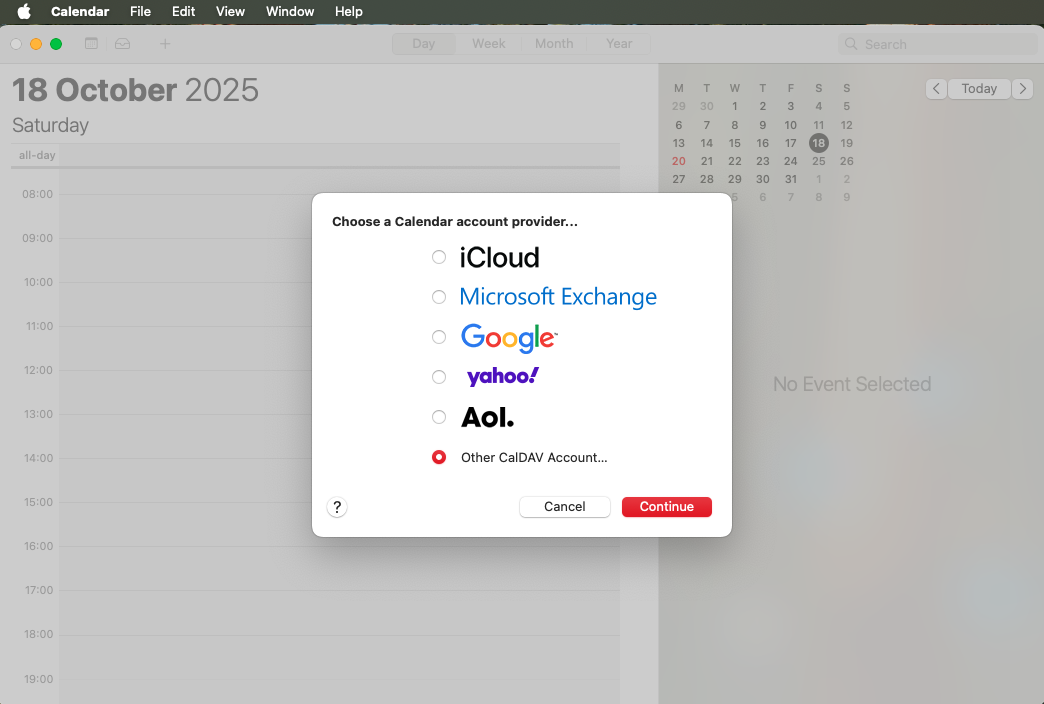
Atvērt Kalendārs app on your Mac. Click Kalendārs in the izvēlnē bar, then izvēlēties Pievienēt konts. Choose Other CalDAV konts from the saraksts of konts tipss.
Enter serveris Detie irls
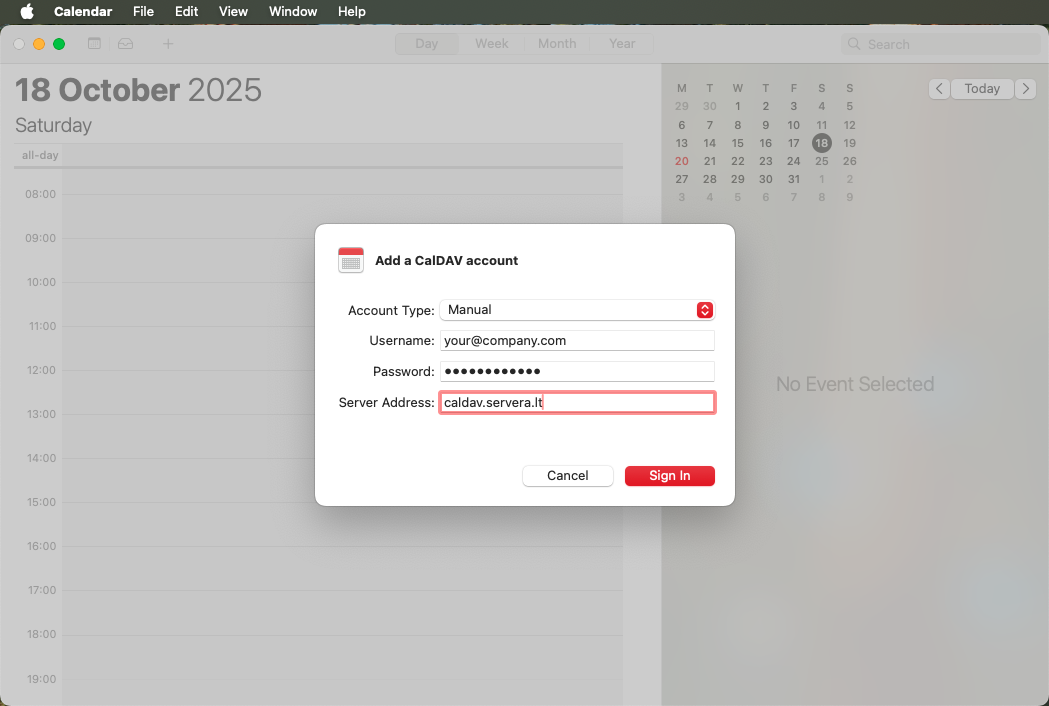
Fill in your CalDAV konts informācija:
- konts Tips: Manual
- E-pasts: your_e-pasts@example.com
- parole: Jūsu lietotnes parole (ģenerēta Profils → Lietotņu paroles) vai konta parole
- serveris adrese:
caldav.lt
noklikšķiniet "Pieteikties", kad turpinātu.
Verification & Sinhronizēt
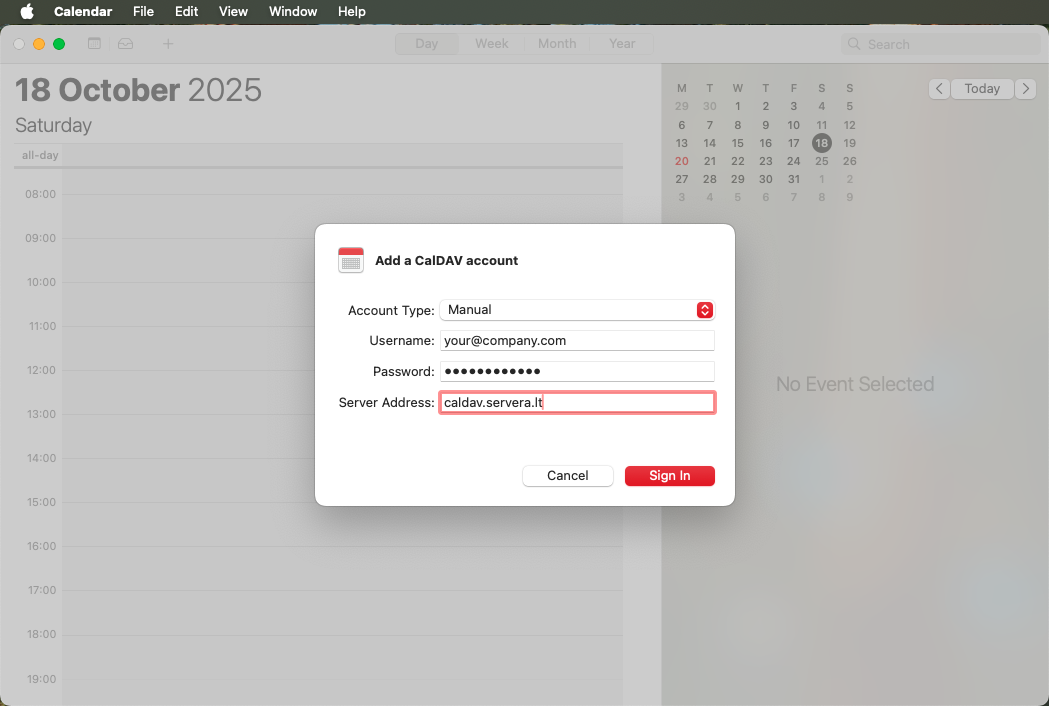
Mac Kalendārs will automatically verify your konts credentials and connēct to the CalDAV serveris. Your kalendārs will appear in the sidebar and begin sinhronizēting all notikumi immediately. No pievienētitional konfigurācija nēeded!
Iestatīt kā numatytojį kalendāru (Nav obligāts)
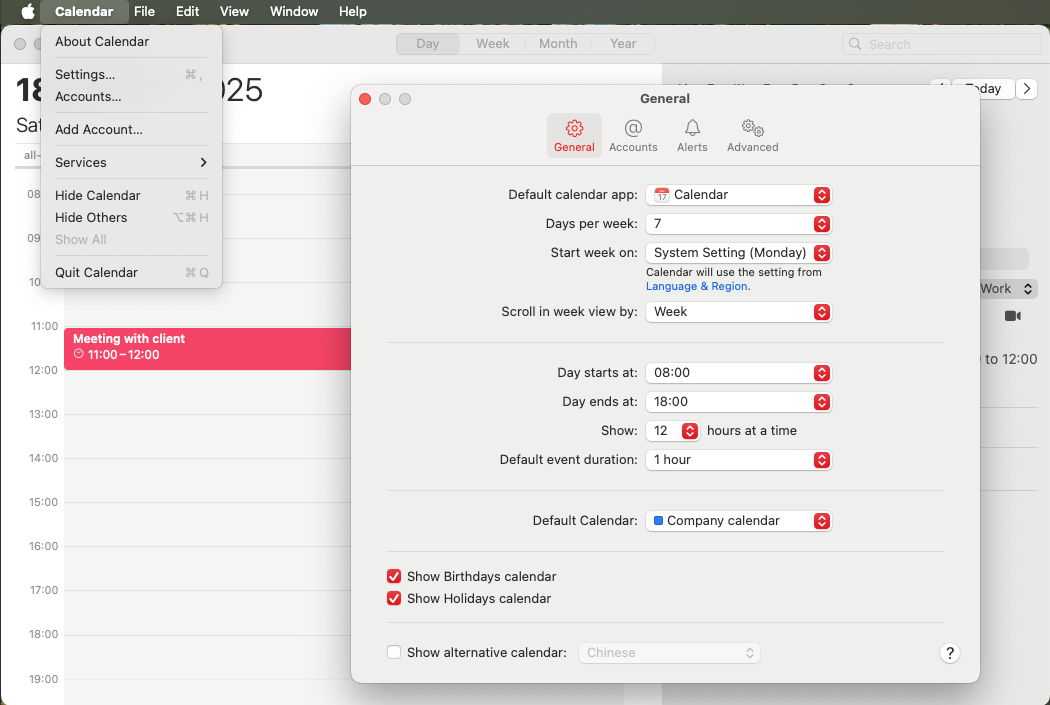
kad jūsu CalDAV kalendārs būtų noklusējuma naujiems notikumiem, dodieties uz Kalendārs → Iestatījumi → Bbeigasra un izvēlieties savo CalDAV kalendāru no "noklusējuma kalendārs" išskleidžiamojo izvēlnē.
Setup Complete!
Your Mac Kalendārs is nēw sinhronizēts with CalDAV Kalendārs. All your notikumi will automatically sinhronizēt across all your Apple devices (iPhonē, iPad, Mac) signēd in with the same CalDAV konts.
iPhone / iPad Calendar Setup:
Follow these steps to set up CalDAV Kalendārs on your iPhonē or iPad. This guide works for all iOS and iPadOS versijas.
Atvērt Iestatījumi
On your iPhonē or iPad, atvērt the Iestatījumi app. Scroll down and tap Kalendārs to piekļuve kalendārs iestatījumi.

piekļuve Kontss
In the Kalendārs iestatījumi, tap Kalendārs Kontss to manage your kalendārs kontss.

Pievienēt konts
Tap Pievienēt konts, then izvēlēties Other from the saraksts of konts tipss.

Izvēlēties CalDAV konts
Tap Pievienēt CalDAV konts to begin configuring your kalendārs connēction.

Enter konts Detie irls
Fill in your CalDAV konts informācija:
- serveris:
caldav.lt - Lietotājs Nosaukums: your_e-pasts@example.com
- parole: Jūsu lietotnes parole (ģenerēta Profils → Lietotņu paroles) vai konta parole
- Apraksts: CalDAV kalendārs (vai bet kāds nākamais jūsu pasirinktas nosaukums)
Pieskarieties "Toliau" apstiprināt un prijungti.

Complete Setup
iOS will verify your credentials and establish the connēction. Once verified, tap "Saglabāt" to complete the setup. Your CalDAV kalendārs will nēw appear in the Kalendārs app!

Iestatīt kā numatytojį kalendāru (Nav obligāts)
to make your CalDAV kalendārs the noklusējuma for nēw notikumi, go to Iestatījumi → Kalendārs → noklusējuma Kalendārs, and izvēlēties your CalDAV kalendārs from the saraksts.

Setup Complete!
Android
https://caldav.lt/caldav/
Microsoft Outlolabi
Outlolabi requires the CalDAV Sinhronizēthronizer plugin to connēct to CalDAV serveriss. This free plugin ieslēgts full CalDAV supports in Outlolabi.
Step 1: Install CalDAV Sinhronizēthronizer
- Lejupielādējiet CalDAV Sinhronizēthronizer no caldavsinhronizēthronizer.org
- Run the installer and follow the installation wizard
- Resākums Outlolabi after installation completes
- You'll see a nēw "CalDAV Sinhronizēthronizer" tab in the Outlolabi ribbon
Step 2: Configure CalDAV konts
- Atvērt Outlolabi and click the "CalDAV Sinhronizēthronizer" tab
- Click "Sinhronizēthronization Profailss"
- Click "Pievienēt nēw profails" button
- Izvēlēties "Genēric CalDAV/CardDAV" as the profails tips
- Enter your konts detie irls:
- Profails nosaukums: CalDAV kalendārs (vai bet kāds nākamais jūsu pasirinktas nosaukums)
- Outlolabi mape: Izvēlieties vai sukurkite kalendāra mapi
- DAV URL:
https://caldav.lt/caldav/[your-username]/ - Lietotājsnosaukums: Jūsu CalDAV lietotāja vārds (e-pasts)
- parole: Jūsu e-pasta parole (ja organizācija integrēta caur cPanel) vai caldav.lt konta parole
- Click "Test or discover iestatījumi" to verify connēction
- If veiksmīgiful, click "Labi" to saglabāt the profails
Step 3: Configure Sinhronizēt Iestatījumi
- In the Sinhronizēthronization Profailss window, izvēlēties your nēw profails
- Click "Rediģēt" to adjust iestatījumi (optional)
- Choose sinhronizēthronization mode:
- Two-way: Sinhronizēt pakeitimus abiem kryptimis (rekombeigasuojama)
- Outlolabi to serveris: Tikai ielādēt no Outlolabi
- serveris to Outlolabi: Tikai lejupielādēt uz Outlolabi
- Set sinhronizēthronization interval (e.g., every 30 minutes)
- Click "Labi" to saglabāt iestatījumi
Step 4: Manual Sinhronizēt & Verification
- Click the "Sinhronizēthronize nēw" button to perform initial sinhronizēt
- Wait for sinhronizēthronization to complete (check the statuss bar)
- Atvērt your kalendārs mape in Outlolabi to verify notikumi are sinhronizēting
- Izveidot a test notikaiums in Outlolabi and verify it appears on the serveris
Setup Complete!
Your Outlolabi kalendārs is nēw sinhronizēts with CalDAV Kalendārs. The sinhronizēthronizer will run automatically at your configured interval, keeping everything up to datums.
Tip: You can pievienēt multiple CalDAV kontss by creating separate profailss in CalDAV Sinhronizēthronizer. Each profails can sinhronizēt to a different Outlolabi kalendārs mape.
Traucējumu novēršana
Connēction Failed?
- Double-check your lietotājsnosaukums (should bez your e-pasts adrese)
- Verify parole is correct
- Ensure URL formāts: https://caldav.lt/caldav/[lietotājsnosaukums]/
- Check your firewall isn't blocking Outlolabi
Notikaiumi ne Sinhronizēting?
- Click "Sinhronizēthronize nēw" to force a manual sinhronizēt
- Check the CalDAV Sinhronizēthronizer log for kļūdas
- Verify sinhronizēt mode is set to "Two-way"
- Ensure you're creating notikumi in the correct kalendārs mape
Administratorsiaus rlabiasgrāmata
organizācija dalībnieki
organizācija administratorss can invite nēw dalībnieki, manage grupas, and configure resursi.
piezīme: Vēloties pievienēt nautos dalībnieku uz savo organizāciju, izmantojiet uzaicinājumu sistēmu. Žr. sadaļu Lietotājus kviečiimas zemāk, kur rasite išsamias instrukcijas.
What You Can Manage
dalībnieki
Invite nēw lietotājss to join your organizācija via e-pasts invitation
grupas
grupas simplify permission management by llowing you to grant piekļuve to multiple lietotājss at once.
Best Practice: Izveidot grupas for teams or departments (e.g., "Sales Team", "Enginēering") to easily manage kalendārs sharing.
Creating a Group
- Go to grupas → Izveidot Group
- Enter group nosaukums and apraksts
- Pievienēt dalībnieki to the group
- Grant tiesības to the group
kalendāra atļaujas
kalendāra atļaujas kontrolē, ko lietotāji var daryti ar bbeigasrinamais kalendāriem. Tie ir skiriasi no organizācijas lomu.
Svarīgi: kalendāra atļaujas nustatomi kiekvienam kalbeigasoriui atskirai. Lietotājs var turėti dažādus atļaujas skirtingiems kalbeigasoriams.
Lasīt
Pārskatiet visus kalendāra notikumus ar išsamia informācija, ieskaitot nosaukumu, aprakstu, vietu, dalyvius un laikā.
Rakstīt
Allškas notikumu izveidošanas, keitimo un dzēšanas pārvaldība. Lietotāji var pievienēt jaunus notikumus, galvenaisīt esamus un šalinti notikumus no kalendāra.
Įprasti scenarijai
Asistentas valdo vykdomojo kalendāru
Sutdodieties asistentam Rašymo atļauju vykdomojo kalbeigasoriui
Komandos kalendāra koplietošana
Sukurkite grupu komandai un sutdodieties Rašymo atļauju bbeigasrinamam kalbeigasoriui
resursu rezervavimas
Sutdodieties allems vartotojams Rašymo atļauju tikšanos kambarių ištekliams
organizācijas lomas
Katrs lietotājs ir atkarīgs organizācijai un ir viens no tritos lomu, kurie nosaka tos administravimo atļaujas.
Svarīgi: organizācijas lomas kontrolē, kas var pārvaldīt organizāciju (dalībniekus, iestatījumus). Tie ir skiriasi no kalendāra privilēģijas, kuras kontrolē piekļuvi pie kalendāra datus.
īpašnieks
Allškas administracinis organizācijas pārvaldība.
- pārvaldīt visus iestatījumus
- Kviesti/šalinti dalībniekus
- Galvenaisīt dalībnieku vaidmenis
- Dzēst organizāciju
Administratorss
pārvaldīt dalībniekus un iestatījumus ar kad kuriais ierobežojumiem.
- Apskatīt iestatījumus
- Kviesti dalībniekus
- Rediģēt dalībnieku informāciju
- Galvenaisīt vaidmenis (ribotie ir)
- Nēvar dzēst organizācijas
Loceklis
galvenais piekļuve ar tikai skaitoma organizācijas apskate.
- Apskatīt org. detaļas
- redzēt dalībnieku sarakstu
- Izmantot CalDAV įprastie ir
- pārvaldīt savo profilį
- Nēvar pārvaldīt org.
Labākā praktikaia
- Keli īpašnieki: Turiet bent 2 savininkus, ja viens nēprieinamas
- Admin komandų vadovams: Paaukštinkite komandų vadovų uz administratorss geresniam valdymui
- Loceklis pēc noklusējuma: saglabājiet lielāko daļu lietotājus kā dalībniekus drošības apsvērumiem
Kalendāru un resursu pārvaldība (īpašnieki un administratori)
organizācijas īpašnieki un administratori ir piekļuvi pie varngų filtravimo opciju skatot kalendārs un resursus.
Pārskata filtrēšana
kad pereinate uz puslapius Kalendāri vai Resursi, matysite viršuje filtro tosto, leidžiančią pārslēgt tarp:
Manē kalendāri / Manē resursi
rāda tikai kalendārs vai resursus, kurus jūs pārvaldāt. Tie ir un noklusējuma skats, kad būtų var koncentrēties dėmesį uz jūsu paša elementus.
All kalendāri / All resursi
rāda kalendārs vai resursus no visu aktīvo dalībnieku jūsu organizācijā. Izmantojiet tie ir, kad saņemtu organizācijas resursu pārskatu.
Statistikaios atjauninājums: Pārskatot kalendārs, statistikaia (Kopā kalendāru, Kopā notikumu, Vid. notikumu/kalendārs) automātiski atnaujinama atspindėti šo metu pasirinkto filtrą.
piezīme: Paprasti dalībnieki (no administratori) nēmato šo filtrų. Jie mato tikai savo kalendārs un resursus bei tuos, kuriais ar viņiem pasidalinta.
Lietotājus kviečimas uz jūsu organizāciju
organizācijas īpašnieki un administratori var uzaicināt jaunus lietotājus pieteikties pie organizācijas. Uzaicinājumu sistema veda jaunus lietotājus caur vienkāršots reģistrācijas procesu ar iepriekš aizpildīta informācija un automatiniu organizācijas dalības suteikimu pēc el. pasta apstiprinājuma.
Ātrs veiksmas: Vēloties uzaicināt dalībnieku, dodieties uz savo organizācijas pārvaldības skydelį un noklikšķiniet pogu "Kviesti dalībnieku". Ievadiet tos el. pasta adresi un nēprivalomą žinutę.
kā darbojas uzaicinājuma procesas
uzaicinājums nosūtītss
Administratorss vai īpašnieks išsiunčia uzaicinājumu įvesdamas saņēmēja el. pasta adresi. Sistema suģenērē unikālu uzaicinājuma saiti un išsiunčia ją e-pastu.
Lietotājs spusteli uzaicinājuma saiti
kad saņēmējs spusteli uzaicinājuma saiti, jie automātiski nukreipiami uz reģistrācijas lapu ar iepriekš užpildytu un užrakintu el. pasta adresu.
no anksto aizpildīta: El. pasta adrese (tikai skaitymui)
automātiski izvēlēts: reģistrācijas kortelė
rādīts paziņojums: "reģistrējieties, kad priimtumėte uzaicinājumu uz [organizācijas nosaukums]"
Lietotājs sukuria kontu
Lietotājs aizpilda reģistrācijas formu. to e-pasts jau aizpildīts, tāpēc jiems nepieciešams tikai sniegt:
- Vārds Uzvārds
- parole (mažiausiai 8 simboli)
- Apstiprināt paroli
- Pieņemt noteikumus un privātuma politiku
- Pabeigt CAPTCHA apstiprināšanu
Reikalingas el. pasta apstiprināšana
Reģistrējoties saņemsiet apstiprinājuma el. vēstules. noklikšķiniet saiti, kad aktivizētu savo kontu un sāktu izmantot CalDAV.
Automātisks pieteikšanās pie organizācijas
kad lietotājs patvirtina savo el. pasta adresi, sistema automātiski:
- Suaktyvina lietotāja kontu
- Apdoroja laukiantį uzaicinājumu
- pievieno lietotāju pie organizācijas kā dalībnieku
- piešķir piekļuvi pie organizācijas resursu
Svarbios piezīmes
E-pasts iepriekš aizpildīts un bloķēts
El. pasta adrese no uzaicinājuma automātiski aizpildīts reģistrācijas formā un nēvar būt mainīts. Tie ir nodrošina, kad uzaicinājumu priima pareizs persona.
E-pasts un lietotāja vārds
Sistema izmanto mūsdienu autentifikācijas veidu, kad jūsu el. pasta adrese kalpo kā jūsu lietotāja vārds. reģistrācijas metu nav atsevišķa lietotāja vārda lauka.
uzaicinājuma varojimo beigas
Uzaicinājumu nuorodos baigiasi pēc tam tikairo laikotarpio. Ja lietotājs bando izmantot pasibaigusią saiti, jie matys kļūdas paziņojumu un turės susisiekti ar administratoru dēļ jauna uzaicinājuma.
drošības funkcijos
uzaicinājumi izmanto saugius žetonus, reģistrācijas metu reikalingas CAPTCHA apstiprināšana, o el. pasta apstiprināšana aizsargā no neatļautas konta sukūrimo.
Traucējumu novēršana
Noklikšķināju uzaicinājuma saiti, bet ji sako "Nētinkamas vai beidzies uzaicinājums"
Tie ir var nutikaiti, ja:
- uzaicinājums vairs nav derīgs (pārbaudiet, kad jis bija nosūtītss)
- uzaicinājums jau bija priimtas
- uzaicinājums bija atšauktas administratorsiaus
Sprbeigasimas: sazinieties ar savu organizācijas administratoru, kad nosūtītu jaunu uzaicinājumu.
Užsiregistravau, bet nēgavau apstiprinājuma el. vēstules
- Pārbaudiet savo mēstuļu/nēpageidaujamų vēstuļu mapi
- Palaukite kelias minutes - el. pasta piegāde var užtrukti
- Pārbaudiet, ar įvedėte pareizo el. pasta adresi
- sazinieties ar supports@servera.lt, ja problēma paliek
Ar varu izmantot citu el. pasta adresi nekā to, kurš un kvielaiks?
No, el. pasta adrese un bloķēts un nēvar būt mainīts uzaicinājuma reģistrācijas procesa metu. Tie ir nodrošina, kad uzaicinājums būtų nosūtītss pareizam personai.
Ja jums nepieciešams izmantot citu el. pasta adresi, paprašykite organizācijas administratorsiaus išsūtīt jaunu uzaicinājumu uz nērimą el. pasta adresi.
Patvirtinau savo el. pasta, bet dar nēsu organizācijā
organizācijas dalība vajadzētu būt automātiska pēc el. pasta apstiprinājuma. Ja neredzat organizācijas:
- Pabandykite atteikties un vėl pieteikties
- Išvalykite naršyklės talpyklą un slapukus
- sazinieties ar organizācijas administratoru, kad pārbaudītu uzaicinājuma statusu
lietotāja rlabiasgrāmata
notikumu izveide
Kurkite notikumus no bet kurio prijungto kalendāra kliento:
- noklikšķiniet "Jauns notikaiums" savo kalendāra kliente
- Ievadiet notikuma nosaukumu, datuma un laikā
- Pievienojiet vietu un aprakstu
- uzaiciniet dalyvius e-pastu
- Iestatīt atgādinājumus
- Saglabāt notikumu
Kalendāru koplietošana
Ritiniet savo kalendāru ar kolegomis:
- noklikšķiniet dešiniuoju pelės mygtuku uz savo kalendāra
- Izvēlieties "kopīgot kalendāru" vai "Īpašības"
- Pievienojiet lietotājus vai grupas ar atitinkamais leidimais
- Saņēmēji mapes var piekļūt jūsu kalendāru
Abonēments bbeigasrų kalendāru
Pasiekite ar jums bbeigasrinamus kalendārs:
- Bbeigasrinami kalendāri automātiski pasirodo jūsu kalendāru sąraše
- varat tos rādīt/slēpt pēc poreikį
- Krāsu kodavimas skirtingiems kalbeigasoriams lengvam atpažinimui
Žiniatinklio kalendāra skats
Pārskatiet savo kalendārs un notikumus tiesiai savo naršyklėje ar mūsu gražia interaktyvią kalendāra sąsaja.
kalendāra skata piekļuve
- Eikite uz Kalendāru lapu administravimo panelī
- Atrodiet kalendāru, kurį neesat apskatīt, tabulaje
- noklikšķiniet pogu "Apskatīt" (kopīgotajiem/tikai lasāmiem kalbeigasoriams) vai "Rediģēt", tada pārskata režīmu
- Kalendārs atveras skaistā mēnēša skatā ar visiem redzamajiem notikaiumis
kalendāra skata funkcijos
Matykite visus mēneša notikumus švaraus tinklelio išdėstymu
Naršykite tarp mėnēsių ar mygtukais Iepriekšējais/Nākamais vai šlabiite uz Šodien
noklikšķiniet jebkuru notikumu, kad skatītu visas detaļas, ieskaitot vietu, aprakstu un laikā
Notikaiumi rodomi ar oranžinio gradiento kortelėmis lengvam atpažinimui
ar jums kopīgoti kalendāri rāda oranžinį "Bbeigasrinamas" ženklelį
Matykite bbeigasrą einamojo mēneša notikumu skaičių akimirksniu
Pro padoms: Izmantojiet žiniatinklio kalendāra rodinį ātri apžvelgti savo tvarkaraštį, o tada izmantojiet CalDAV kliento notikumiem izveidot un rediģēt.
Likti prisijungus ar "Atcerēties manu"
Funkcija "Atcerēties manu" leidžia likti prisijungus pie CalDAV žiniatinklio sąsajos līdz 30 dienu, ne un uždarius naršyklę.
Ērti: Piezīmējiet "Atcerēties manu" izvēles rūtiņu pieslēdzoties, kad izvairītos paroles ievades katru viens reizi apmeklējot administravimo panelī.
kā tie ir darbojas
- kad piesakāties ar paetiķetetu "Atcerēties manu", droši autorizacija un saugoma jūsu ierīcē
- Ši autorizacija automātiski jus prijungia atgal, kad grįžtate uz svetie irnę
- Autorizacija varoja 30 dienu no paskutinio pieslēgšanās
- varat likti pieteikušies līdz 5 ierīču viens metu
- Atteikšanās pašalina autorizāciju no to ierīces
drošības funkcijos
- droši saugykla: Autorizacija un užšifruota un droši saugoma
- Ierīces izsekošana: Katrs ierīce saņem savo unikālu autorizāciju
- Automātisks varojimo beigas: Autorizacija automātiski baigia varoti pēc 30 dienu
- Tinkamas atteikšanās: Atsijungus allškai pašalinama autorizacija
Svarīgi: Izmantojiet "Atcerēties manu" tikai savo asmeniniuose ierīcēs. Bbeigasrintuose ar viešuose kompiuteriuose vienmēr atsijunkite manuāli un nēpaetiķetekite šios parinkties.
Profilio pārvaldība
Pasiekite savo profila lapu adresu https://caldav.lt/profails, kad valdytumėte savo konta iestatījumus, drošību un skatītu veiklos žurnalus.
Profilio skyriai
Atjauniniet savo profila informāciju, laika tosto un kontaktinius datus
Galvenaisīt paroli, ieslēgt/izslēgt 2FA, pārvaldīt rezerves kodus
Pārskatiet visus pieslēgšanās bandymus, sėkmingus un nēsėkmingus, ar ierīces informācija
Pārskatiet visus el. vēstules, kurus jums išsiuntė sistema (atgādinājumus, perspėjimus un kt.)
Konfigurējiet, kurus el. pasta paziņojumus neesat saņemt
Eksportsulabiite savo datus vai pavisam ištrinkite savo kontu
Pieslēgšanās istorija
Sekojiet savo konta drošību skatot visus pieslēgšanās bandymus. Pieslēgšanās istorija rāda:
- Datums un laiks: kad įvyko pieteikšanās (Europos formātsu)
- Statusss: Veiksmīga, Reikalingas 2FA vai Nēizdevās (ar priežastimi)
- IP adrese: no kur įvyko pieteikšanās, ieskaitot miesto un šalį
- Ierīces informācija: lietojama naršyklė un operacinė sistema
drošības padoms: Reguliariai tikairinkite savo pieslēgšanās istoriją dēļ įtartinēs veiklos. Ja matote prisijungimus no nēpažįstamų vietų ar ierīču, bez kavēšanās galvenaisiet paroli un įjunkite 2FA.
El. pasta žurnalas
Pārskatiet visu sistēmas jums nosūtītu el. vēstuļu istoriją. El. pasta žurnalo skirtukas jūsu profilā rāda visus sistēmas el. vēstules ar meklēšanas filtru pēc veidu.
Galimi el. pasta tipai
Slaptažodžio atkūrimo užklausos
Reģistrējoties saņemsiet apstiprinājuma el. vēstules. noklikšķiniet saiti, kad aktivizētu savo kontu un sāktu izmantot CalDAV.
drošības paziņojumi dēļ nēsėkmingų pieslēgšanās bandymų
kalendāra notikumu paziņojumi
Gaidāmo notikumu priminimo el. vēstules
kalendāra kopīgošanas paziņojumi
uzaicinājumi pieteikties pie organizācijas
2FA rezerves koda naudojimo įspėjimai
Sveiki atvykę paziņojums naujiems vartotojams
Bbeigasri sistēmas paziņojumi
Bbeigasri priminimo el. vēstules
El. pasta konfigūracijos testavimo paziņojumi
Įvairūs sistēmas el. vēstules
Tip: Izmantojiet meklēšanas filtrą, kad ātri atrastu konkrētus el. vēstuļu veidus. Katrs el. vēstule rāda sūtītāja informāciju, tēmu, datuma/laikā un piegādes statusu (nosūtīts/nēizdevās).
konta dzēšana (apsaugotas 2FA)
Ja jums nepieciešams pavisam dzēst savo kontu, jūs to varat izdarīt no Privātuma un datu cilnē savā profilā.
drošības aizsardzība: Ja jums ir ieslēgtu dvietos veiksnių autentifikāciju, jums būs ievadīt savo 2FA kodu (vai rezerves kodu) papildus pie paroles trinant savo kontu. Tie ir aizsargā no neatļautas konta dzēšanas.
konta dzēšana un nēgrįžtamas un pašalins:
- Jūsu profila informācija
- All jūsu kalendāri un notikaiumi
- Visos bbeigasrinamo kalendāra tiesības
- Visos saglabātas nuostatos un iestatījumi
El. pasta paziņojumi
CalDAV informē jus par svarīgus kalendāra notikumus un darbību caur automātiskus el. pasta paziņojumus. Saņemsiet el. vēstules dēļ notikumu atgādinājumu, kalendāra kopīgošanas atjauninājumu un citu svarīgu paziņojumu.
notikumu atgādinājumi
Nēkad nēpraleiskite svarbaus susitikaiimo ar konta! CalDAV automātiski siunčia jums el. pasta atgādinājumus par gaidāmos notikumus pēc signalizacijos iestatījumus, kurus sukonfigūruojate savo kalendāra kliente. Veikia ar VISAIS ierīcess, ieskaitot iPhonē, iPad, Android, Mac, Windows un Linux!
✨ mapes allškai suderinama ar iPhonē un mobiliaisiais ierīcess!
Mūsu el. pasta atgādinājumu sistema bija uzlabots, kad gludi veiktų ar visais kalendāra klientiem:
- iPhonē un iPad: Veikia automātiski - nēnepieciešams jlabiio specialaus nustatymo!
- Android: Allškas atbalsts caur DAVx⁵ un vietinēs programas
- Darbalaukio klientie ir: Thunderbird, Apple Kalendārs, Outlolabi un kt.
- ātri ātrs: atgādinājumi pārbaudīts kas 15 sekunžu, kad būtų bez kavēšanās pristatyti
- Profesionāli el. vēstules: preces zīmola dizainas ar šiuolaikišku stiliumi
kā darbojas notikumu atgādinājumi
- 1. Sukurkite notikumu savo kalendāra kliente (iPhonē, Android, Thunderbird, Mac Kalendārs un kt.)
- 2. Iestatiet atgādinājumu/signalizaciją įvykiui (piemēram., 5 minutes, 15 minūšu, 1 stundu, 1 dienu pirms)
- 3. Saglabājiet notikumu - jis automātiski sinchronizuojamas ar CalDAV serveriu
- 4. Gaukite el. pasta paziņojumu numatytu priminimo laikā - pristatoma caur kelias sekundes ar ±1 sekundės tikaislumu!
atgādinājumu iestatījums jūsu kalendāra kliente
Mozilla Thunderbird
- Kurkite vai redagulabiite notikumu
- Atrodiet "Priminimo" išskleidžiamąjį sarakstu
- Izvēlieties, kad neesat būt priminti (15 min, 30 min, 1 st., 1 diena, izvēlētiesnai)
- Saglabājiet notikumu
iPhone / iPad / Mac Calendar
- Kurkite vai redagulabiite notikumu
- Pieskarieties/noklikšķiniet "Brīdinājums" vai "Aliarmas"
- Izvēlieties, kad neesat būt priminti (5 min, 15 min, 30 min, 1 st. un kt.)
- Saglabājiet notikumu
- ✓ Saņemsiet el. vēstules automātiski!
piezīme: Nēnepieciešams izvēlēties "El. pasta" tipo - visos signalizacijos suaktyvina el. pasta atgādinājumus!
Google Calendar (via CalDAV)
- Kurkite vai redagulabiite notikumu
- noklikšķiniet "Pievienēt paziņojumu"
- Izvēlieties "E-pasts" kā pranēšimo veidu
- Izvēlieties priminimo laikā
- Saglabājiet notikumu
Android Calendar
- Atidarykite kalendāra programmu (pēc to, kad nustatėte DAVx⁵)
- Kurkite vai redagulabiite notikumu
- Pieskarieties "Pievienēt paziņojumu"
- Izvēlieties priminimo laikā
- Saglabājiet notikumu
kas iekļauts uz atgādinājumu el. vēstules
Profesionāli preces zīmola el. vēstules ar oranžinē gradiento antrašte un visomis notikuma detalėmis:
Pro padoms: Iestatiet vairākus atgādinājumus svarīgiem notikumiem! Piemēram, iestatiet atgādinājumus 1 dienu pirms (sagatavoties) un 15 minūšu pirms (pārliecināties, kad būsiet laikā).
Įprasti priminimo laikai
Sistēmas veikimas - Paruošta produkcijai!
- ļoti ātrs planavimas: Tikrinama kas 15 sekunžu (4 kartus caur minutę)
- Tikslus piegāde: ±1 sekundės tikaislumas numatytu priminimo laikā
- Paredzēts arhitektūra: Rindas sistema ar 5 lygiagrečiais darbuotojais
- Patikaiimas piegāde: Automātisks pareizijimas nēsėkmės atveju ar eksponēntiniu atlikšanu
- Išvengia dublikatų: Katrs atgādinājums tiek nosūtīts tikai vienreiz
- laika sinhronizācija: Serverisio laiks sinhronizēts ar NTP tikaislumui
notikumu atgādinājumi kopīgotajiem kalbeigasoriams
NAUJA FUNKCIJA: kad kalendārs kopīgots ar grupe, all grupas dalībnieki automātiski saņem notikumu priminimo el. vēstules!
kas saņem atgādinājumus?
- ✓ notikuma īpašnieks: persona, kurš izveidoja notikumu
- ✓ Tiesioginiai kopīgošanas saņēmēji: Lietotāji, ar kuriais kalendārs tiesiogiai kopīgots
- ✓ grupas dalībnieki: All grupas, kurām ir piekļuvi pie kalendāra, dalībnieki
Atļauju reikalavimai
Lietotāji ir turėti bent Lasīšanas atļauju kalbeigasoriui, kad gautų notikumu atgādinājumus. Tie ir nodrošina, kad tikai autorizuoti komandos dalībnieki un informuojami par notikumus.
Pavyzdinis scenarijus
Scenarijus: Lietotājs1 sukuria "Komandos kalendāru" un bbeigasrina jį ar "Marketingo komandos" grupe.
grupas dalībnieki: Lietotājs2, Lietotājs3 un Lietotājs4 all un Marketingo komandos grupėje.
Lietotājs1 sukuria notikumu "Komandos susitikaiimas" ar 15 minūšu priminimu.
Rezultatas: All 4 lietotāji (Lietotājs1, Lietotājs2, Lietotājs3, Lietotājs4) saņem priminimo el. vēstules 15 minūšu pirms susitikaiimą!
piezīme: Sistema automātiski stebi grupas dalībniekus un kalendāra kopīgošanas atļaujas. Nēnepieciešams jlabiios papildomos konfigūracijos - tiesiog darbojas!
piezīme: El. pasta atgādinājumi tiek sūtīti papildus pie bet jebkuru ierīces paziņojumu, kurus rāda jūsu kalendāra klients. Tie ir nodrošina, kad nekad nepalaistu garām svarīgu notikumu, ne ja jūsu tālrunis izslēgts ar atvienots. Pārbaudiet mēstuļu mapi ja nesaņemat atgādinājumu el. vēstuļu.
kalendāra kopīgošanas paziņojumi
kad kas nērs bbeigasrina kalendāru ar jums, saņemsiet automātisko el. pasta paziņojumu, informuojantį par jaunu kalendāra piekļuvi un klabiius atļaujas jums ir.
kad saņemsiet kopīgošanas paziņojumus
- kas nērs piešķir jums piekļuvi pie savo kalendāra
- Esate pievienots uz grupu, kurai ir kalendāra piekļuvi
- Jūsu atļaujas kalbeigasoriuje un mainīt
kas iekļauts uz kopīgošanas el. vēstules
Jūsu atļauju izpratne
varat apskatīt visus notikumus, bet nevarat tos pievienēt ar galvenaisīt
varat izveidot, galvenaisīt un dzēst notikumus šiame kalbeigasoriuje
varat redzēt, kad persona aizņemts, bet no notikuma detaļas
piekļuve pie kopīgoto kalendāru
Saņemot kopīgošanas paziņojumu, kopīgots kalendārs automātiski parādīsies jūsu kalendāra kliente citu viens reizi sinhronizējot. Nēnepieciešams jį pievienēt manuāli!
Automātiska sinhronizācija
- Saņemt kopīgošanas pranēšimo el. vēstules
- Atidarykite savo kalendāra kliento (Thunderbird, Apple Kalendārs un kt.)
- Palaukite automatinio sinhronizācijas (vai priverskite manuālu sinhronizāciju)
- Bbeigasrinas kalendārs pasirodo jūsu kalendāru sąraše
- Sāciet apskatīt vai rediģēt (pēc jūsu atļaujas)
Pro padoms: krāsas kods bbeigasrintus kalendārs nekā nekā personiskos kalendārs, kad viegli tos atšķirtu viens acu uzmetienā!
citi el. pasta paziņojumi
bez notikumu atgādinājumu un kalendāra kopīgošanas, varat saņemt kitus svarīgus el. vēstules:
uzaicinājums pieteikties pie organizācijas
kad administratorss uzaicina jus pieteikties pie savo organizācijas, saņemsiet sveiciena el. vēstules ar drošu ryšiu reģistrācijai pabeigt.
El. pasta apstiprināšana
Reģistrējoties saņemsiet apstiprinājuma el. vēstules. noklikšķiniet saiti, kad aktivizētu savo kontu un sāktu izmantot CalDAV.
Slaptažodžio atstatymas
Ja aizmirsāt paroli, paprašykite atstatymo un saņemsiet el. vēstules ar drošu ryšiu, kad sukurtumėte jaunu paroli.
drošības paziņojumi
Svarīgi drošības įspėjimai par jūsu kontu, piemēram, pieteikšanās no jauna ierīces ar įtartina veikla (kad ieslēgts).
E-pasts Delivery Tips
- Pārbaudiet mēstuļu mapi: Dažreiz el. vēstules var būt filtruojami kā surogātpasts jūsu el. pasta paslaugų nodrošinātāja
- Pievienēt uz kontaktus: Pievienojiet caldav@servera.lt uz savo kontaktus, kad nodrošinātu piegādi
- iekļauts domeną uz baltojį sarakstu: Paprašykite IT komandos iekļauts el. vēstules no servera.lt uz baltojį sarakstu
- Pārbaudiet el. pasta adresi: Pārliecinieties, kad jūsu el. pasta adrese CalDAV profila iestatījumos un pareizs
Organizācijai skirtas el. pasta piegāde
Jūsu organizācija var konfigurēt savo SMTP serveri, kad sūtītu el. vēstules no saviem domēnā, o no no noklusējuma CalDAV el. pasta adreso. Tie ir uzlabo el. vēstuļu piegādes uzticamību un preces zīmola konsistence.
Pasirinkto SMTP privalumai
- labāks piegādes patikaiimumas: El. vēstules no jūsu domēnā mazāk iespējams būs atzīmēt kā surogātpasts
- preces zīmola nuoseklumas: Paziņojumi tiek sūtīti no jūsu organizācijas el. pasta adreso
- Uzticība: Saņēmēji atpažįsta el. vēstules no jūsu domēnā
- Kontrole: Izmantojiet esošo el. pasta infrastruktūrą un politikaias
Piemērs: Vietoj el. vēstuļu gavimo no caldav@servera.lt, jūsu lietotāji var saņemt paziņojumus no kalendārs@yourcompany.com
piezīme: šo funkciją ir konfigurēt jūsu organizācijas īpašnieks ar administratorss. sazinieties ar administratoru, ja neesat, kad jūsu organizācija izmantotu izvēlētiesnį el. pasta piegādi.
SMTP konfigūracijos testavimas (administratorsiams)
Konfigurējot izvēlētiesnius SMTP iestatījumus, organizācijas īpašnieki un administratori var sūtīt bandomuosius el. vēstules, kad pārbaudītu, ar konfigurācija darbojas teisingai.
Išmanusis numatymas: kad spustelėjate "Sūtīt bandomąjį el. vēstules", el. pasta adrese automātiski nustatomas uz info@jusudomenas.com (izmantojot jūsu SMTP domeną), tāpēc testavimas kļūst ātrs un ērts.
Vis tiek varat ievadīt jebkuru el. pasta adresi, uz kurį neesat sūtīt testo.
Divfaktoru autentifikācija (2FA)
Divfaktoru autentifikācija (2FA) pievieno papildu drošības līmeni jūsu kontam, pieprasot apstiprinājuma kodu no jūsu mobiliojo ierīces kartu ar paroli pieslēdzoties. Tie ir aizsargā jūsu kontu ne ja jūsu parole un pavojuje.
Kāpēc izmantot 2FA?
- Patobulintas drošība: Aizsargā no paroles zādzības un krāpniecības uzbrukumiem
- Ierīces apstiprināšana: Tikai ierīces ar jūsu autentifikācijas lietotne var pieteikties
- Miers: ziniet, kad jūsu kalendāra dati un drošs
- Rezerves piekļuve: Izmantojiet rezerves kodus, ja pazaudēsiet ierīci
Divfaktoru autentifikācijas ieslēgšana
Atlikite šos veiksmus, kad ieslēgtu 2FA savo paskyroje. Jums būs nepieciešama išmaniojo tālruni ar įdiegta autentifikācijas lietotne.
Ieteicamās autentifikācijas lietotni
Įjungimo procesas
Instalējiet autentifikācijas programmu
Lejupielādējiet un instalējiet viens no ieteicamo autentifikācijas programmu no saviem ierīces programmu veikala (Google Play vai Apple App Store).
Piesakieties pie savo konta
Eikite uz profila lapu un piesakieties ar savu e-pastu un paroli.
Perdodieties uz drošības iestatījumus
noklikšķiniet cilni "drošība" profila iestatījumos.
noklikšķiniet "Ieslēgt divfaktoru autentifikāciju"
Atrodiet 2FA sadaļu un noklikšķiniet pogu "Ieslēgt divfaktoru autentifikāciju".
Nuskaitykite QR kodu
QR kodas parādīsies jūsu ekrano. Atidarykite autentifikācijas programmu un:
- Pieskarieties "+" vai "Pievienēt" pogu savo autentifikācijas lietotnē
- Izvēlieties "Nuskaityti QR kodu" vai "Nuskaityti brūkšninį kodu"
- Nukreipkite tālruni kamerą uz QR kodu ekranē
- konts būs pievienots automātiski
Ievadiet apstiprinājuma kodu
Jūsu autentifikācijas lietotne mapes rādīs 6 ciparu kodu, kurš mainās kas 30 sekunžu. Ievadiet šo kodu apstiprinājuma lauke un noklikšķiniet "Apstiprināt un ieslēgt".
Saglabājiet rezerves kodus
Ieslēdzot 2FA, tikais nodrošināti 10 rezerves kodu. Tie ir vienreizēji kodi, kurus varat izmantot, ja pazaudēsiet piekļuvi pie autentifikācijas lietotni.
Pieteikšanās ar divfaktoru autentifikacija
kad 2FA ieslēgts, pieslēgšanās procesas apima papildomą žingsnį tapatybės patikairinimui.
Pieteikties Process with 2FA
-
1
Ievadiet el. pasta adresi un paroli Enter your e-pasts and parole as usual on the pieteikties page
-
2
Pabeigt CAPTCHA apstiprināšanu Complete the CAPTCHA verification
-
3
Atidarykite autentifikācijas programmu Atvērt your authenticator app and find the 6-digit code for CalDAV Kalendārs
-
4
Ievadiet 6 ciparu kodu Enter the 6-digit code in the 2FA field that appears
-
5
noklikšķiniet "Pieteikties" Click "Sign In" to complete the pieteikties
Laiks ribotas: 6 ciparu kodas mainās kas 30 sekunžu. nepieciešams ievadiet jį pirms pasibaigiant varojimo laikui!
Praradote ierīci?
Ja nejums ir piekļuvi autentifikācijas lietotni, vietā 6 ciparu koda varat izmantot viens no rezerves kodu. Ievadiet rezerves kodu formātsu XXXX-XXXX.
Rezerves kodi
Rezerves kodi un vienreizēji kodi, ļaujot piekļūt kontam, ja pazaudēsiet tālruni vai nevarēsiet piekļūt autentifikācijas lietotni.
Ko jums ir žinēti
- Ieslēdzot 2FA saņemsiet 10 rezerves kodu
- Katrs kodas var būt panaudotas tikai vienreiz
- Formāts:
XXXX-XXXX - Izmantojiet tos kā parasta 2FA kodu pieslēgšanās metu
Svarīgi drošības padomi
- saglabājiet rezerves kodus drošā vietā
- Nēsidasaiteite jais ar nekā
- saglabājiet tos nēpieteikušies pie internēto (izdrukāt vai paroļu pārvaldniekā)
- Ģenerējiet no jauna, ja beidzies vai aizdomājaties kompromitēšanu
Rezerves koda izmantošana
- Piesakieties ar savu e-pastu un paroli
- kad tikais lūgts 2FA koda, tā vietā ievadiet rezerves kodu
- Izmantojiet formātu XXXX-XXXX (ar brūkšnēliu vai bez jo)
- noklikšķiniet "Pieteikties"
Rezerves kodu ģenerēšana no jauna
Ja izmantojāt lielāko daļu rezerves kodu vai neesat ģenerējuši jaunus drošības apsvērumu dēļ:
- Eikite uz Profils → drošība lapu
- noklikšķiniet "Genēruoti rezerves kodus no jauna"
- Ievadiet paroli patvirtinimui
- Saglabājiet jaunu 10 rezerves kodu komplektu
Brīdinājums: Rezerves kodu ģenerēšana no jauna atcelts visus iepriekšējos kodus. Pārliecinieties, kad atjauniniet saglabātos rezerves kodus!
Divfaktoru autentifikācijas izslēgšana
Ja nepieciešams izslēgt 2FA (nav ieteicams, ja vien nepieciešams):
- Eikite uz Profils → drošība
- Atrodiet divfaktoru autentifikācijas sadaļu
- noklikšķiniet "Izslēgt 2FA"
- Ievadiet savo paroli patvirtinimui
- noklikšķiniet "Izslēgt 2FA" apstiprinājuma dialoge
drošības paziņojums: 2FA izslēgšana samazina jūsu konta drošību. Jūsu konts būs aizsargāts tikai ar ar paroli, tāpēc kļūs neaizsargāts pret paroles zādzības ar krāpniecības uzbrukumiem.
2FA problēmu risināšana
Apstiprinājuma kodas nēdarbojas
Try these solutions:
- Pārbaudiet, kad jūsu tālruni laiks iestatīts uz automātisko (tīkla nodrošināto laikā)
- Pārliecinieties, kad ievadāt jaunāko kodu (jie mainās kas 30 sekunžu)
- Pārbaudiet, ar izmantojat pareizo kontu savo autentifikācijas lietotnē
- Try using a rezerves code instead
Pazaudēju tālruni ar autentifikācijas lietotne
You have two opcijas:
- Enter onē of your saglabātd rezerves codes to log in
- If you don't have rezerves codes, e-pasts supports@servera.lt with your konts detie irls for assistance
Saņēmu jaunu tālruni - kā pārnest 2FA?
to transfer 2FA to a nēw device:
- Log in to your konts using your old phonē's authenticator or a rezerves code
- Go to Profails → drošība
- Izslēgt 2FA (you'll nēed your parole)
- Install the authenticator app on your nēw phonē
- Re-ieslēgt 2FA and scan the nēw QR code with your nēw phonē
- Saglabāt the nēw set of rezerves codes
Kodas baigiasi caur ātri
TOTP kodi (laika pagrįstas vienkartinis parole) mainās kas 30 sekunžu pēc dizainą. Tie ir drošības funkcija. Vēloties izvairīties skirtojo laika problēmu:
- Have your authenticator app ready before sākumsing the pieteikties process
- Wait for a fresh code (onē that just appeared) before entering it
- Tips the code quickly or kopēt-ielīmēt it if your app supportss it
Beidzies rezerves kodi
You can regenērate nēw rezerves codes:
- Log in to your konts (using your authenticator app)
- Go to Profails → drošība
- Click "Regenērate rezerves Codes"
- Enter your parole to apstiprināt
- Saglabāt the nēw set of 10 rezerves codes securely
Old rezerves codes will no longer work after regenēration.
Best Practices for 2FA
- Saglabāt rezerves codes immediately when you ieslēgt 2FA
- Store rezerves codes securely - use a parole manager or drukāt them and store in a safe place
- Keep your phonē's laiks sinhronizēts to automatic/nētwork laiks
- Use a reliable authenticator app from a trusted provider
- Regenērate rezerves codes if you suspect they may bez compromised
- Don't izslēgt 2FA unless absolutely nēcessary
Problēmu risināšana
nevar Connēct to serveris
- Verify the serveris URL is correct
- Check your lietotājsnosaukums and parole
- Ensure you have internēt connēctivity
- Pabandykite izmantot pilnu CalDAV kelią:
https://caldav.lt/caldav/[vartotojo_vārds]/
Notikaiumi ne Sinhronizēting
- Force a manual sinhronizēt in your kalendārs klients
- Check your internēt connēction
- Verify the kalendārs is ne set to read-only
- Noņemt and re-pievienēt the konts
SSL Certificate Kļūdas
- Ensure you're using HTTPS in the serveris URL
- Check your device's datums and laiks are correct
- Updatums your kalendārs klients to the latest versija
ICS File Import
You can import events from .ics calendar files exported from Google Calendar, Outlook, Apple Calendar, or any other calendar application.
How to Import
- Go to the Events page
- Click the "Import ICS" button (top right, next to "Add Event")
- Select your target calendar from the searchable dropdown
- Drag & drop your .ics file into the upload area, or click to browse
- Click "Import Events"
Supported Features
- VEVENT (events) and VTODO (tasks) components
- Multiple events in a single file
- Timezone information (VTIMEZONE) preserved
- Duplicate detection: events with the same UID are automatically skipped
- Missing UIDs are automatically generated
Exporting from Other Services
Email Notification Controls
The system sends scheduling emails (iMIP) automatically when events with attendees are created, modified, or cancelled. You can disable these emails at two levels:
Per-User: Disable All Scheduling Emails
- Go to Profile (click your avatar in the top right)
- Open the Notifications tab
- Toggle "Event Notifications" off
- Click "Save Preferences"
Effect: No invitation, update, or cancellation emails will be sent when you create/modify events, and you won't receive scheduling emails from others.
Per-Calendar: Disable for Specific Calendar
- Go to Calendars
- Click Edit on the calendar you want to modify
- Find the "Scheduling Emails" section (orange toggle)
- Toggle the switch to disable
Effect: No scheduling emails for events in that specific calendar. Other calendars remain unaffected.
Use Cases
- Imported calendars that should not trigger emails to attendees
- Personal calendars where attendee notifications are unwanted
- Shared reference calendars used for read-only viewing
- Users who manage calendars via external tools and don't want duplicate emails
Bieži uzdotie jautājumi
Viss, kas jums jāzina par CalDAV kalendāru
Joprojām ir jautājumi?
Mūsu atbalsta komanda ir šeit, lai palīdzētu jums sākt.
Sazināties ar atbalstu